
How to Customize Pricing & Tiered Table Displays on Your Storefront
Ensure your B2B wholesale prices, compare-at retail prices, and tiered quantity discount tables are displayed beautifully on your online store. With the Pricing Display settings, you can customize the fonts, colors, and layout of your wholesale prices to match your store’s theme.
Step 1: Go to Display Management
From your Shopify admin, open the Wi2B B2B Wholesale Pricing app and click Display Management in the left sidebar. Make sure you are on the Pricing display tab.
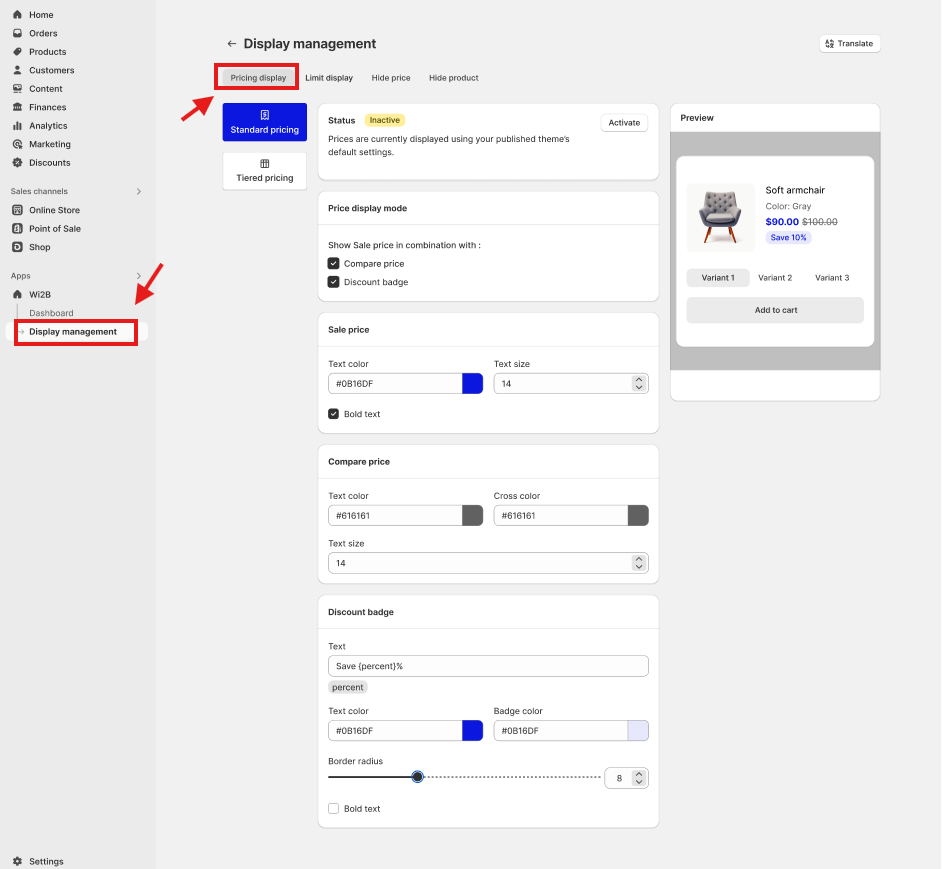
Step 2: Configure Standard Pricing Settings
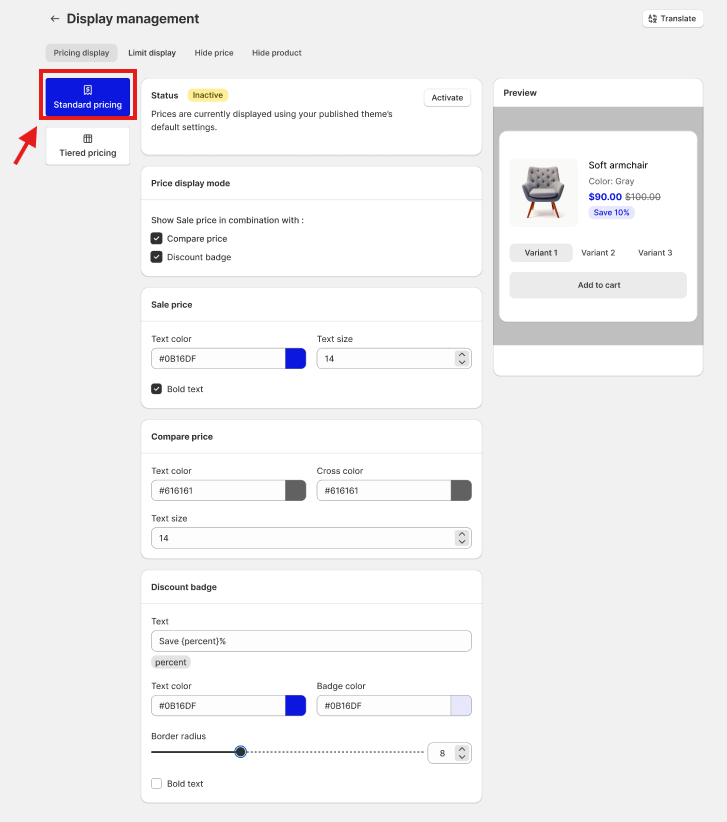
The Standard pricing card controls how B2B prices look on collection grids, search results, and product detail pages.
Under Price display mode, check the boxes for the elements you want to display:
- Sale price — The custom wholesale B2B price.
- Compare price — The crossed-out retail price.
- Discount badge — A badge showing the discount percentage (e.g., Save 10%).
Scroll down to customize the styling of each element:
- Sale price — Set the text color (default is blue), text size, and toggle Bold text on/off.
- Compare price — Set the color of the cross line and the text size of the retail compare price.
- Discount badge — Customize the text template (use
{percent}for the dynamic percentage, e.g.,Save {percent}%), text color, badge background color, and border radius.
Step 3: Configure Tiered Pricing Settings
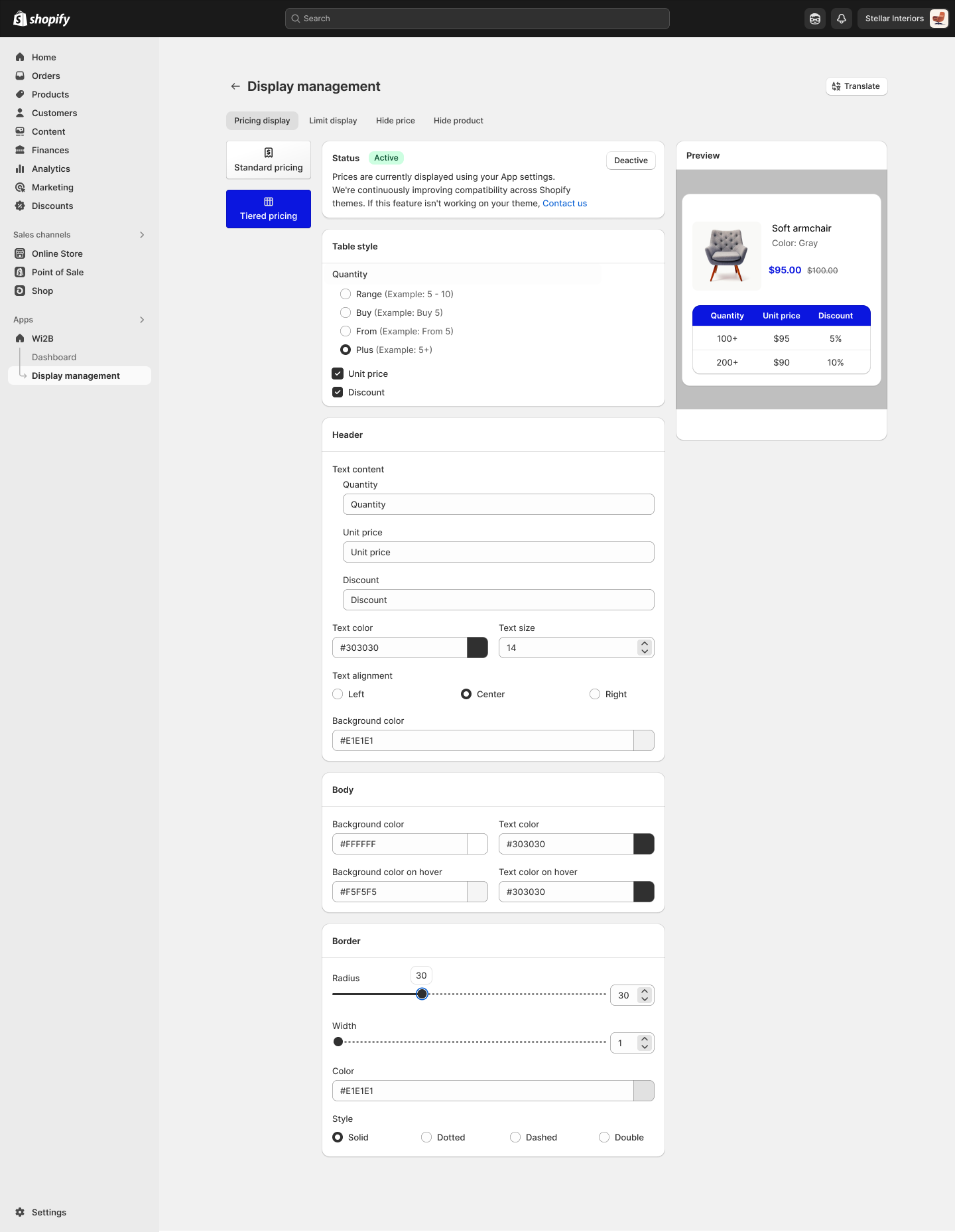
Switch to the Tiered pricing card to customize the quantity breaks table displayed on product pages.
Configure how the table columns and borders will look:
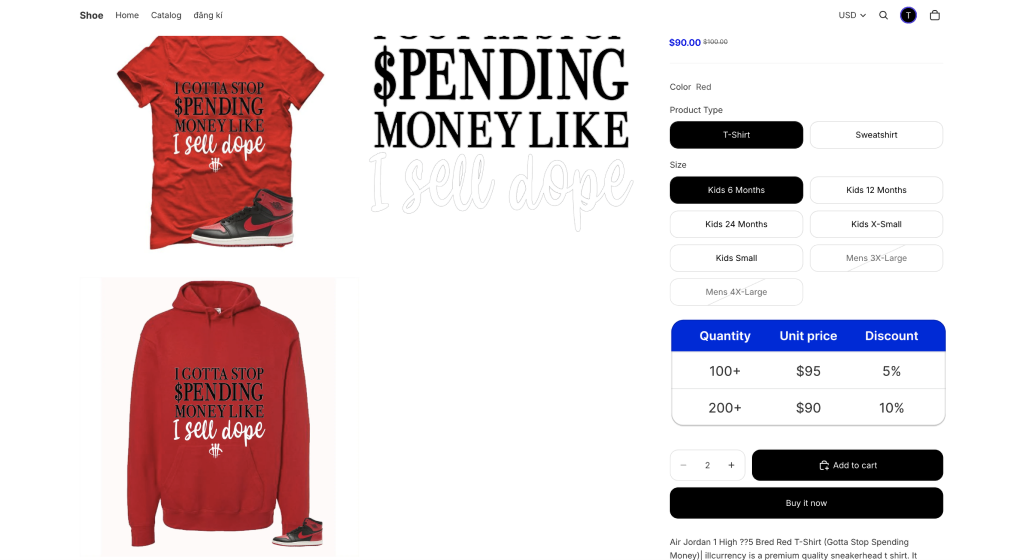
- Quantity display style — Choose how quantity breaks are labeled in the table. You can select Buy (e.g., Buy 5), From (e.g., From 5), Range (e.g., 5 - 10), or Plus (e.g., 5+).
- Table style & border — Select the grid border style: Solid, Dotted, Dashed, Double, or borderless. You can also adjust the border radius, border color, and border width.
- Table colors — Customize the background color, text color, and hover colors (background/text) for the table rows.
- Table header — Adjust the text size, text color, background color, and alignment (Left, Center, Right) for the table headers (
Quantity,Unit price,Discount).
Step 4: Activate the Pricing Display
Once you have customized your styles:
- Click Activate at the top of the page.
- The status banner will update to: "Prices are currently displayed using your App settings." and the status badge will turn green and display Active.
Note: Wi2B is continuously improving compatibility across Shopify themes. If this feature isn't working on your theme, click Contact us or reach out to our support team.
What Your Customers Will See
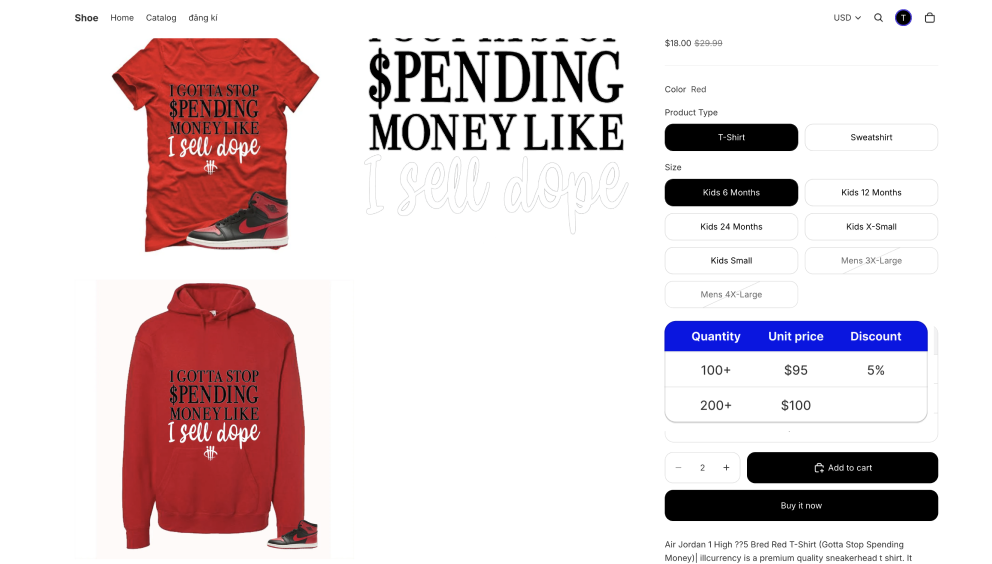
Once active, here is what wholesale buyers will see on your storefront:
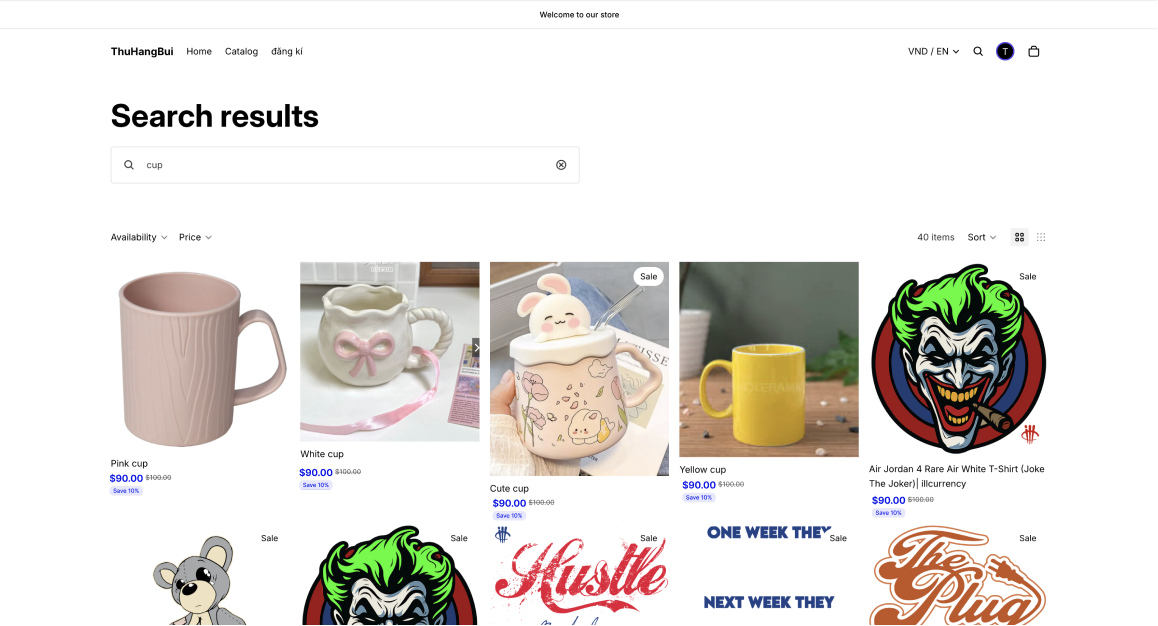
On collection and shop pages: The customized blue wholesale price, crossed-out retail price, and discount badge will display on product cards.
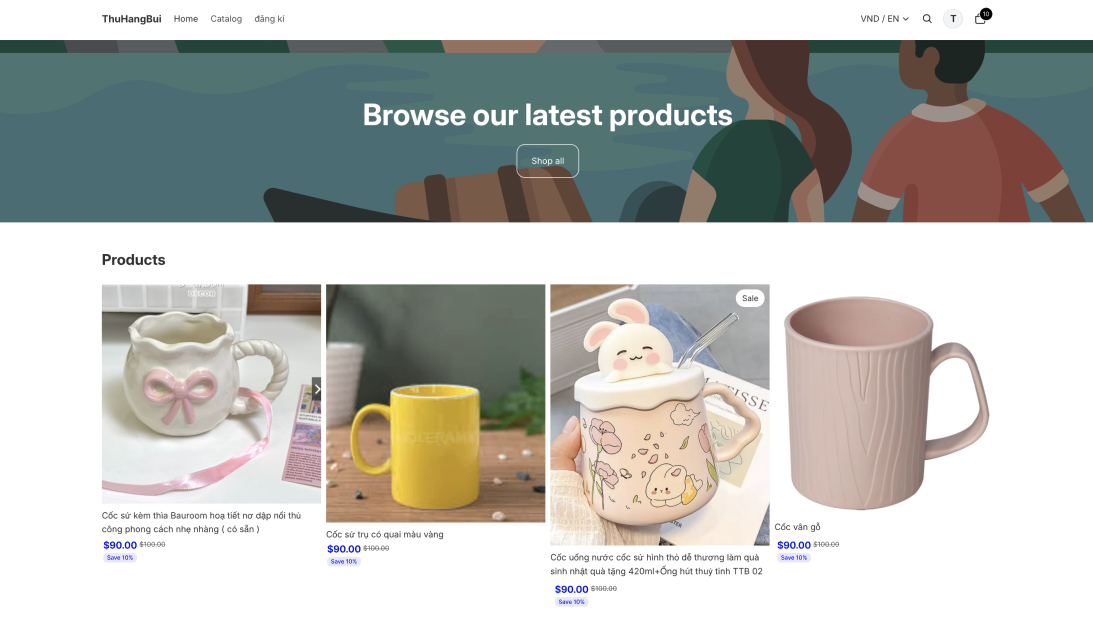
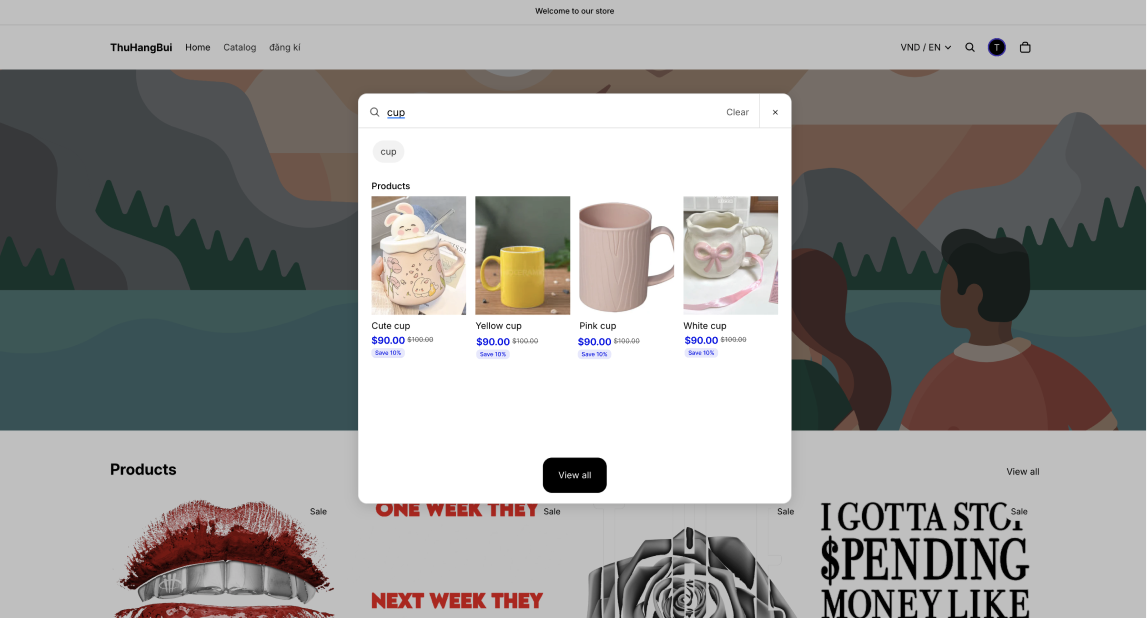
On search results: B2B pricing styling is also applied to search result items to maintain a consistent store experience.
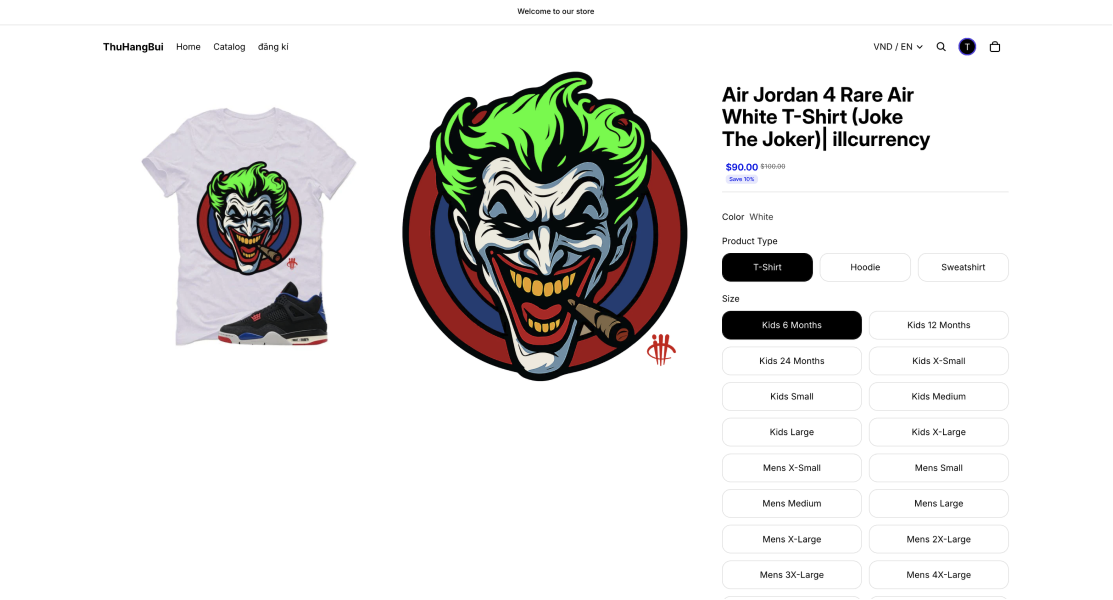
On product details pages (Standard Price): The customized B2B price and discount badge will display clearly next to variant options. When variants change, the price updates dynamically.
On product details pages (Tiered Table - Buy/From Layout): A styled table will display below product info showing quantity tiers and unit discounts.
On product details pages (Tiered Table - Range Layout): Displays quantity tiers in ranges to help customers easily visualize bulk price drops.
Need More Help?
If you experience any issues or have questions, please don't hesitate to contact our support team at help@wi2b.com or through our live chat — we're here to assist you!