
How to Set Up and Customize the B2B Quick Order Form
Streamline wholesale purchasing and boost order volume by providing B2B buyers with a fast, bulk-ordering table page. The Quick Order Form feature allows wholesale customers to search products by SKU or title, filter by collection, select multiple variants, and add dozens of items to their cart or checkout in a single click.
To set up your Quick Order Form, log into the Wi2B dashboard and click Quick order management in the left navigation menu.
The management screen contains two main configuration tabs: Setting and Appearance.
Step 1: Configure Form General Settings
Under the Setting tab, configure the basic rules and URL for your bulk order page.
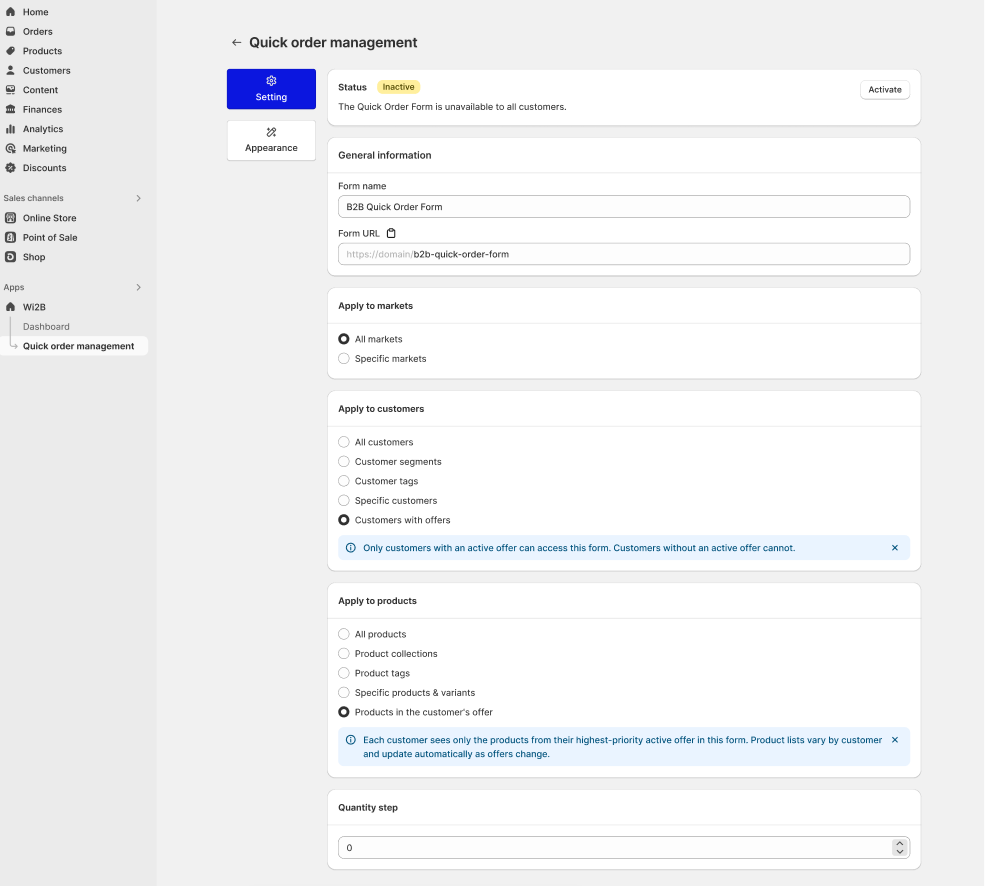
General Information
- Form name — Enter a title for your quick order page (e.g.,
B2B Quick Order Form). - Form URL — The link generated for your storefront page (e.g.,
yourstore.myshopify.com/pages/quick-order). Click the Copy link button to easily copy the URL and add it to your store's navigation menu.
Apply to Markets
Choose which Shopify markets have access to this quick order form:
- All markets — Available across all markets.
- Specify markets — Select specific regional markets.
Apply to Customers
Select which customer groups can access the form:
- All customers — Visible to any store visitor.
- Non logged-in customers — Visible only to visitors who are not logged in.
- Customer tags — Visible only to logged-in customers with specific tags (e.g.,
wholesale,b2b). - Specific customers — Visible only to selected customer accounts.
Tip: You can also configure Exclude customers or Exclude customer tags to prevent specific retail buyer groups from viewing the form.
Apply to Products
Select which products are included in the quick order table:
- All products — Displays your entire product catalog.
- Product collections — Displays products from selected collections.
- Product tags — Displays products matching specific tags.
- Specific products & variants — Handpick individual products or variants.
- Products matching customer rule — Displays only the products for which the logged-in B2B customer receives custom wholesale pricing rules.
Quantity Step
Enter the default purchasing increment for products in the table (e.g., 1 or 6 ).
Step 2: Customize Form Appearance
Switch to the Appearance tab to customize the layout, visible table columns, and colors to match your store branding.
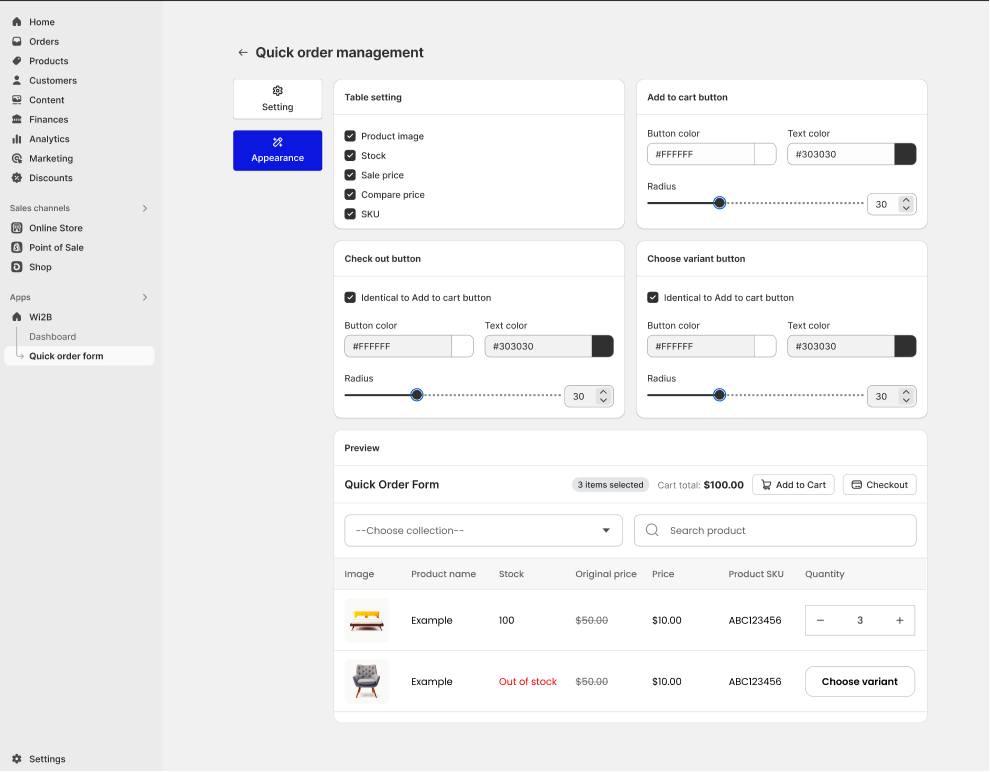
Table Setting (Visible Columns)
Toggle the checkboxes to choose which columns appear in the quick order table:
- Product image — Displays thumbnail images for items.
- Stock — Displays live inventory quantities (or Out of stock status).
- Original price — Displays the strikethrough retail compare price.
- Price — Displays the custom B2B wholesale price.
- Product SKU — Displays the SKU code for each product or variant.
Header & Action Bar Colors
- Button background color — Choose a custom hex color for primary action buttons like Add to Cart and Checkout (default is blue
#0B16DF). - Button text color — Set the font color inside buttons (default is white
#FFFFFF).
Items Per Page
Select how many products display per page in the quick order table (e.g., 10 , 20 , or 50 items).
Live Table Preview
As you adjust column checkboxes and colors, inspect the Preview section at the bottom of the page to see how your Quick Order Form will look in real time before saving.
Step 3: Activate the Quick Order Form
Once you have completed your configuration:
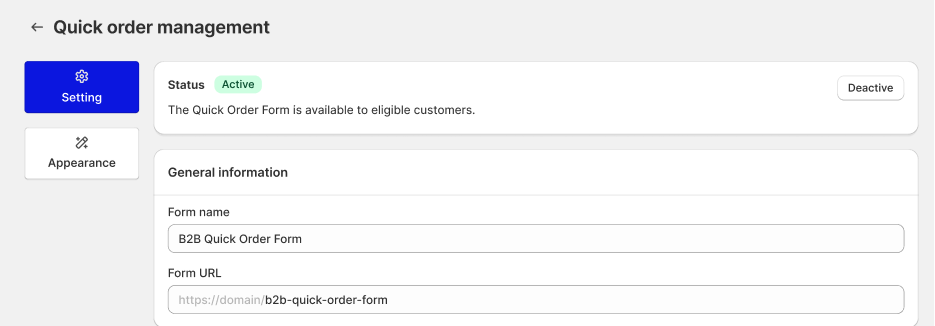
- Click Activate at the top right of the page.
- The status banner will update to: "Your quick order form is ready to serve your B2B customers." and the status badge will turn green and display Active.
What Your Customers Will See
Once active, wholesale buyers who visit your Quick Order Form page will enjoy a seamless bulk purchasing experience:
1. Top Action & Summary Bar: At the top of the form, buyers can see a real-time order summary (e.g., 3 items selected | Cart total: $100.00) and click Add to Cart or Checkout instantly.
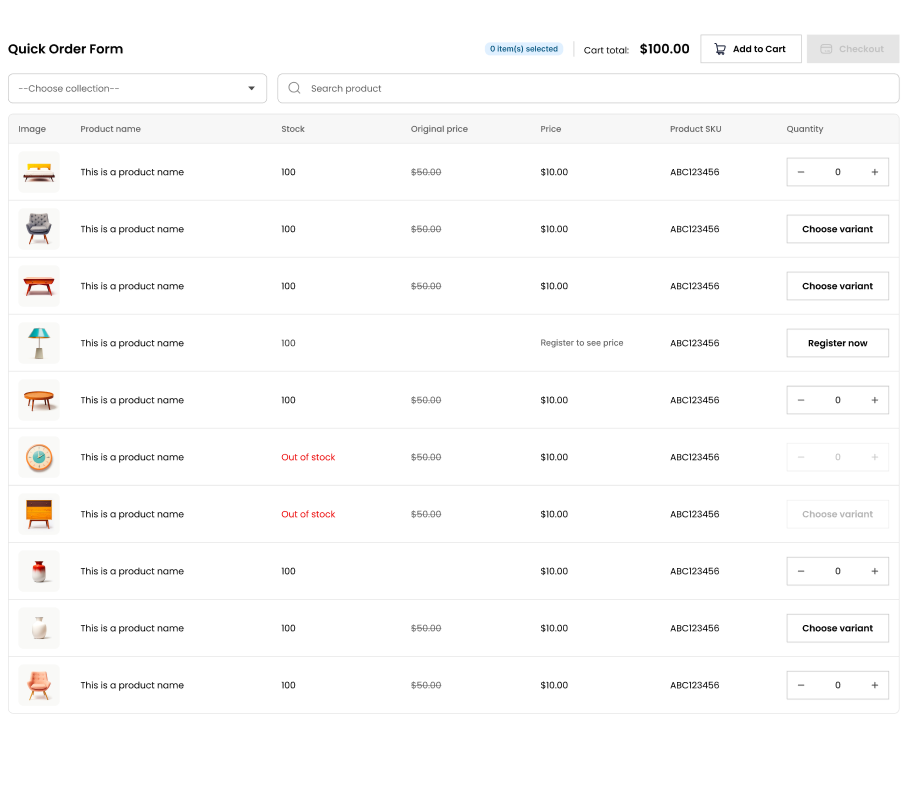
2. Product Search & Collection Filter: Buyers can type product titles or SKU codes into the Search product field or filter items by selecting a collection from the dropdown menu.
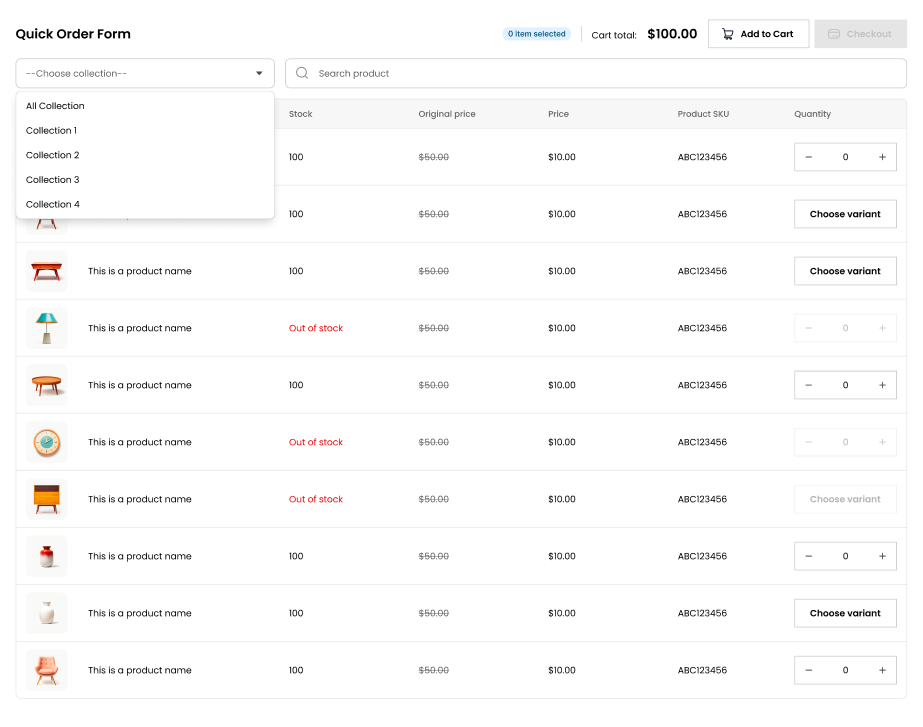
3. Bulk Quantity Steppers: For single-variant items, buyers can quickly enter quantities or use the - / + stepper buttons.
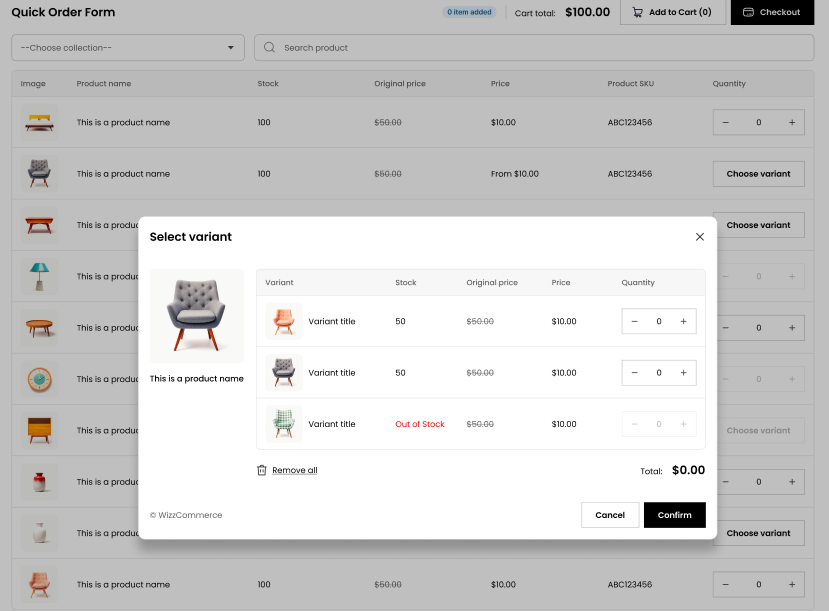
4. Variant Selection Modal: For products with multiple options (like sizes or colors), clicking Choose variant opens a pop-up modal allowing buyers to view all variant options, compare stock/prices, and enter quantities for multiple variants at once.
Need More Help?
If you experience any issues or have questions, please don't hesitate to contact our support team at help@wi2b.com or through our live chat — we're here to assist you!