
How to Translate App Labels for Multi-Language Stores
Ensure a seamless shopping experience for your international B2B buyers by displaying your wholesale prices, badges, and warning messages in their preferred language. The Translation feature in Wi2B allows you to customize all customer-facing text labels for every language enabled on your Shopify store.
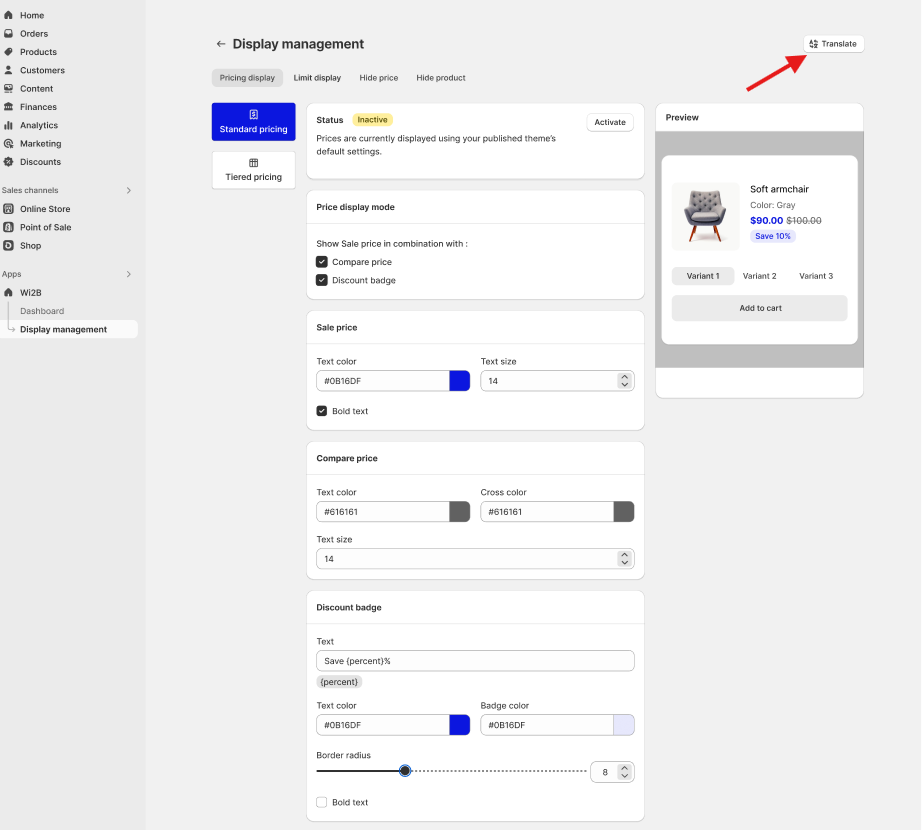
Step 1: Click the Translate Button
You can translate your app text at any time while configuring your settings:
- In your Wi2B admin, go to any setup page (such as Pricing display, Limit display, Hide price, or Hide product).
- Click the Translate button located at the top right of the page.
Step 2: Customize Translations for Your Active Languages
When the translation window opens, you will see your default English text templates along with input fields for all secondary languages published on your Shopify store (e.g., French, Spanish, German, Vietnamese).
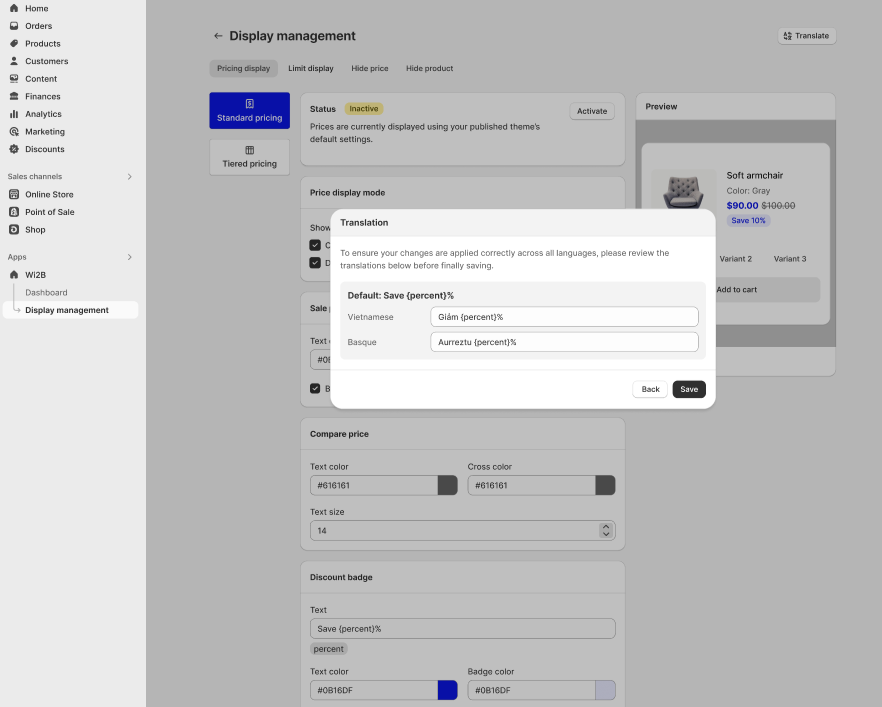
Review and update the translated text for each feature area:
- Pricing & Discount Badges — Translate discount labels (e.g.,
Save {percent}%➡️ Giảm {percent}%). - Hide Price & Registration Buttons — Translate restricted price messages (e.g., Login to see price) and action button labels (e.g., Register now).
- Limit Warnings — Translate minimum product quantity, maximum limit, increment, and order minimum warning messages.
- Quick Order Form — Translate bulk order page titles, search bar placeholders, variant selector buttons, and action buttons (
Add to Cart,Checkout).
Tip: Always keep variable placeholders inside curly braces—such as
{percent},{min_product_limit},{max_product_limit},{product_increment}, or{min_order_limit}—so dynamic numbers update automatically on your storefront.
Step 3: Save Your Translations
Once you have finished entering your translated text for each language:
- Click Save at the bottom right of the window to apply your changes.
- If you need to make changes later, simply click Translate again on any setup page to update your text.
What Your Customers Will See
Wi2B automatically detects the language your customer has selected on your Shopify store (via your theme's language switcher or Shopify Markets domain):
- Default Language Visitors: See your primary default text (e.g., Register to see price or Save 10%).
- Secondary Language Visitors: All custom B2B elements—including discount badges, limit warnings, tiered pricing table headers, and registration buttons—automatically display in their selected language.
(screenshot: Storefront preview showing localized B2B badges and warning messages in a secondary language)
Need More Help?
If you experience any issues or have questions, please don't hesitate to contact our support team at help@wi2b.com or through our live chat — we're here to assist you!