
Enforcing a Minimum Order Value for B2B Checkout
This guide explains how to configure a minimum order value threshold using Wi2B to prevent B2B customers from checking out with small, unprofitable orders.
The Business Scenario
To qualify for wholesale pricing, you want to require your B2B partners to purchase a minimum of $500 (or your store's default currency) per order.
Configuration Steps
Follow these steps to set up the minimum order value limit:
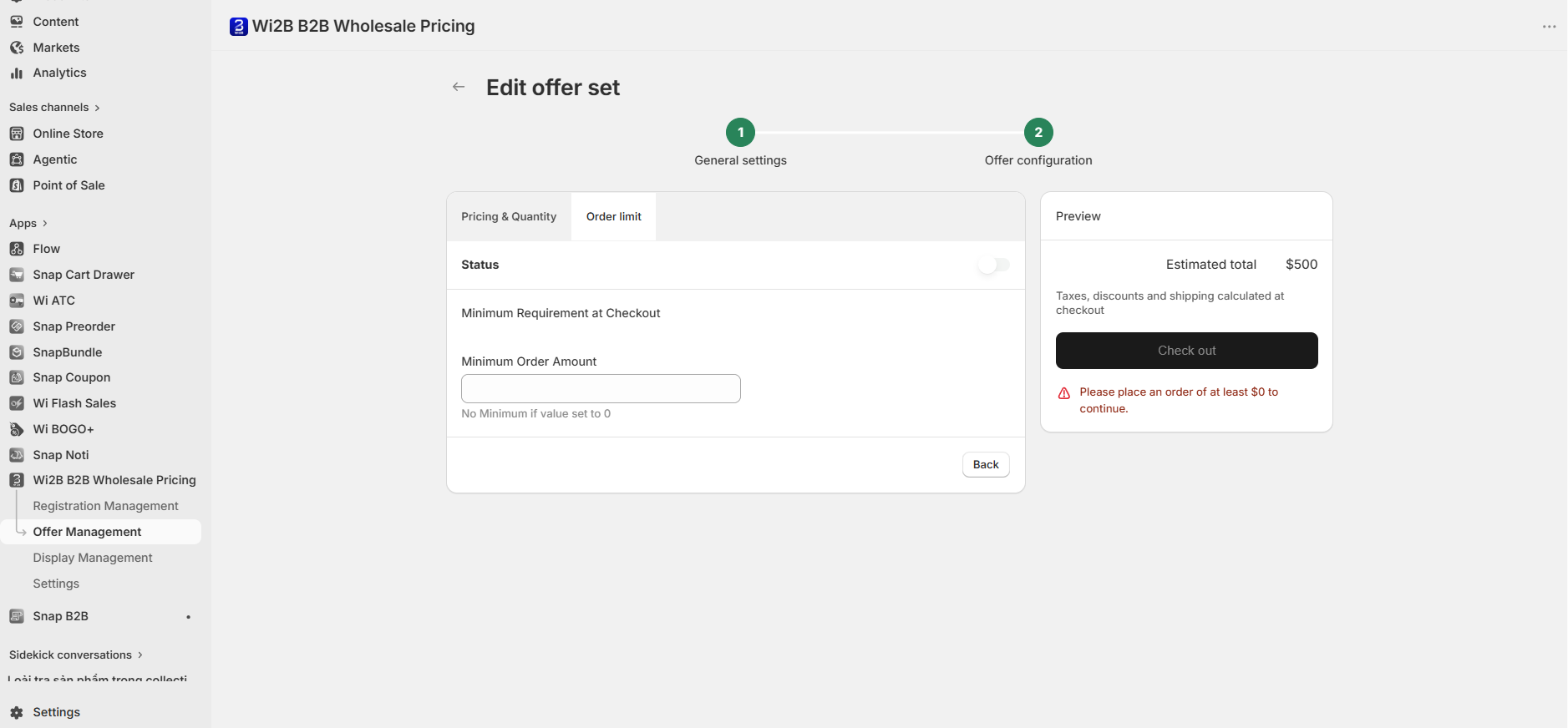
- From the Wi2B app, open the specific Offer Set applied to your B2B customers.
- Navigate to the Offer configuration step (Step 2).
- Select the Order limit tab located next to the Pricing & Quantity tab.
- In the Minimum Order Amount field, enter your required threshold (e.g.,
500). - Toggle the Status switch to ON.
-
Click Save and ensure the Offer Set status is set to Active.
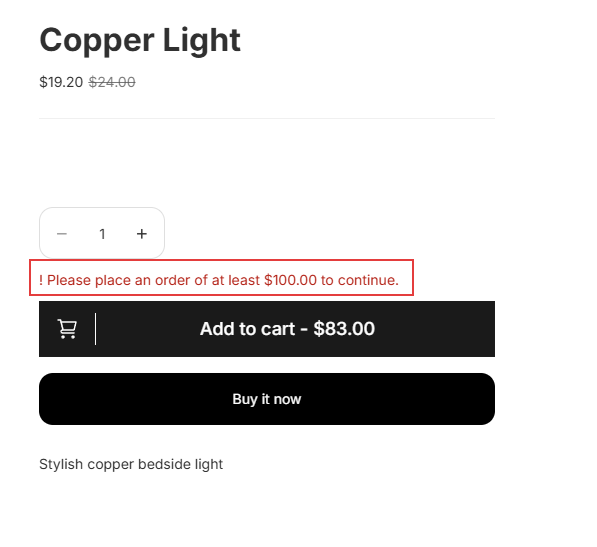
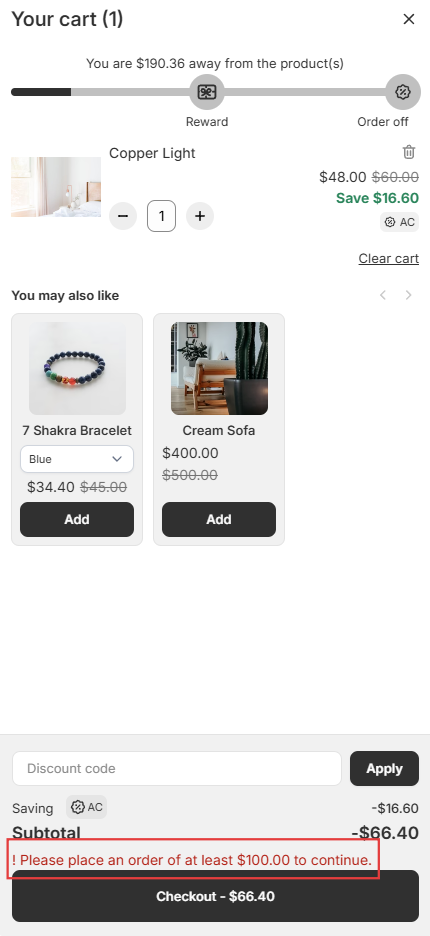
Storefront B2B Buyer Experience
- Checkout Blocked System-Wide: Wherever a checkout action exists (including the dynamic checkout "Buy it now" button on the product page, the slide-out drawer cart, and the main cart page), a warning message displays and the checkout functionality is disabled if the minimum threshold is not met.
-
Once the Threshold is Met: All warning messages disappear, and checkout functionality is restored across all pages, allowing the customer to proceed to payment.
Related Guides
Need More Help?
If you experience any issues or have questions, please don't hesitate to contact our support team at help@wi2b.com or through our live chat - we're here to assist you!